


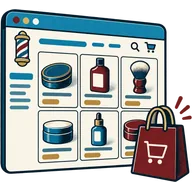
At the end of this article you will know where your online store lives, what it shows, and how to control it. You will have checked that your products look right online, hidden anything you do not want to sell there, and shared the store link with clients. There is no separate store to build: it comes from the product list you made in the last two articles.
Before you start
- Services and retail products are added. See Add services and Add retail products.
- Each retail product has a photo and a category.
- You know how you want clients to pay or collect: pay in store, collect at the shop, or pay online through your card processor.
Steps
- Find your store link. Go to Settings → Online store (it may be listed as the store or catalogue settings). Copy the public link. Open it in a private browser window to see what clients see.
- Check the shop details. The store uses your business name, logo, address and opening hours from Settings. If any of these look wrong, fix them in Settings → Business settings or Settings → Business locations.
- Review categories. Categories become store sections. If “Retail” is too vague, split it into “Hair”, “Beard” and “Tools” under Products → Categories.
- Hide what you do not sell online. Open the product in Products → List products, edit it and turn off the online or store visibility option. Do this for add-ons, internal items and anything you only sell in person.
- Check photos and names. A blurry photo or a name like “POM-100-MTE” does not sell. Rename products in plain words and upload clear photos.
- Set how orders are handled. In the store settings, choose collection in store, local delivery or both, and the payment options. Online card payments run through your own processor; getbarberpos records the sale.
- Link bookable services. Make sure services you allow online point clients to your appointments booking page.
- Test an order. Place a small order from your phone. Confirm it appears under Sell and that stock went down.
- Share the link. Put it in your Instagram bio, Google Business Profile, WhatsApp status and on a card at the till.
Keeping it fresh
Because the store reads from your product list, every change you make in Products shows online. A new pomade with a photo and stock appears the moment you save it. A price change at the till is a price change online. Check the store once a month from your phone.
Common mistakes
- Leaving test products visible. If you added “Test item” while learning, delete or hide it.
- No photos. Products without pictures look empty online.
- Out-of-date stock. If shelf counts are wrong, the store sells what you do not have. Keep opening stock and purchases accurate.
- Expecting a full website. The store is for products and bookings. For a managed website, see the website offer.
- Forgetting to share the link. A store nobody knows about takes no orders.
Read more about how it works on the online store page.
Next step
Get the floor running: Set up the walk-in queue board.