


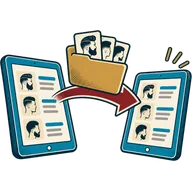
At the end of this article your client list and product catalogue will be in getbarberpos, cleaned up and checked, so you do not type hundreds of names by hand. You will know what moved across, what did not, and what to do about upcoming bookings. There is no live connection to your old app: the move is a CSV export from there and a CSV import here.
Before you start
- Your account, location, taxes and barbers are set up (articles 1 to 4).
- Admin access to your old app so you can export data.
- A spreadsheet program (Excel, Google Sheets or Numbers) to tidy the file.
- An hour without clients waiting. Imports are easy, but checking the file takes care.
- Read Switching to getbarberpos for the bigger picture.
Steps
- Export clients from your old app. In Booksy, SQUIRE or Square, look for a client list export in the clients or customers area and download it as CSV. Menus change often, so check the old app’s help pages if you cannot find it. If you used a notebook or phone contacts, build a spreadsheet with name, phone and email columns.
- Download the getbarberpos template. Go to Contacts → Import contacts and download the sample CSV. It shows the exact columns and their order.
- Copy your data into the template. Paste names, phones and emails into the matching columns. Set contact type to customer. Put cut notes in the notes column if there is one.
- Clean the file. Remove duplicates, blank rows and test entries. Write phone numbers with the country code (+1, +971, +92) so reminders through your messaging provider reach the right person.
- Test with five rows. Save a copy with just five clients and import it. Open Contacts → Customers and check the names, phones and notes look right.
- Import the rest. Import the full file. If a row fails, the import screen shows the row number and reason. Fix it and import those rows again.
- Export products. From Square or your old POS, export the item list as CSV.
- Use the product template. Go to Products → Import products and download the sample. Copy in name, SKU or barcode, category, cost price, selling price, tax and opening stock. For services, set manage stock to off.
- Test and import products. Same as clients: five rows first, then everything. Check a few items at the POS.
- Move upcoming bookings. Enter the next week or two of appointments in Bookings by hand, then share your new booking link with clients.
Common mistakes
- Expecting visit history to come across. Most apps only export contact details. Keep the old export file as your archive.
- Phone numbers without country codes. Reminders fail or go to the wrong person.
- Changing the template’s column order. The import reads columns by position. Keep the order.
- Importing duplicates. Clean first, import once.
- Canceling the old app too early. Keep it until the last upcoming booking there is done and your export is saved.
Questions about the file? Write to . Comparing tools first? See getbarberpos vs Booksy and getbarberpos vs SQUIRE.
Next step
You are set up. Head back to the help center for daily how-tos, or see the full list of features.